

Suggested Item
Please note: this webstore only allows checkout in the USA.
For a complete list of resellers, please visit our Where to Buy page.
By clicking Checkout you agree to our Terms of Service.
Charges will appear as RUPERT NEVE DESIGNS on your statements.
Plug-In Support Center
RND Plug-in Activation & Installation Instructions
Once you've completed an order online, you will see an activation code (or codes) for the plug-in(s) you've purchased listed in your email receipt.
To redeem your activation code(s), please use the iLok License Manager and click on ‘Redeem Activation Code’ under the ‘Licenses' pull-down menu:
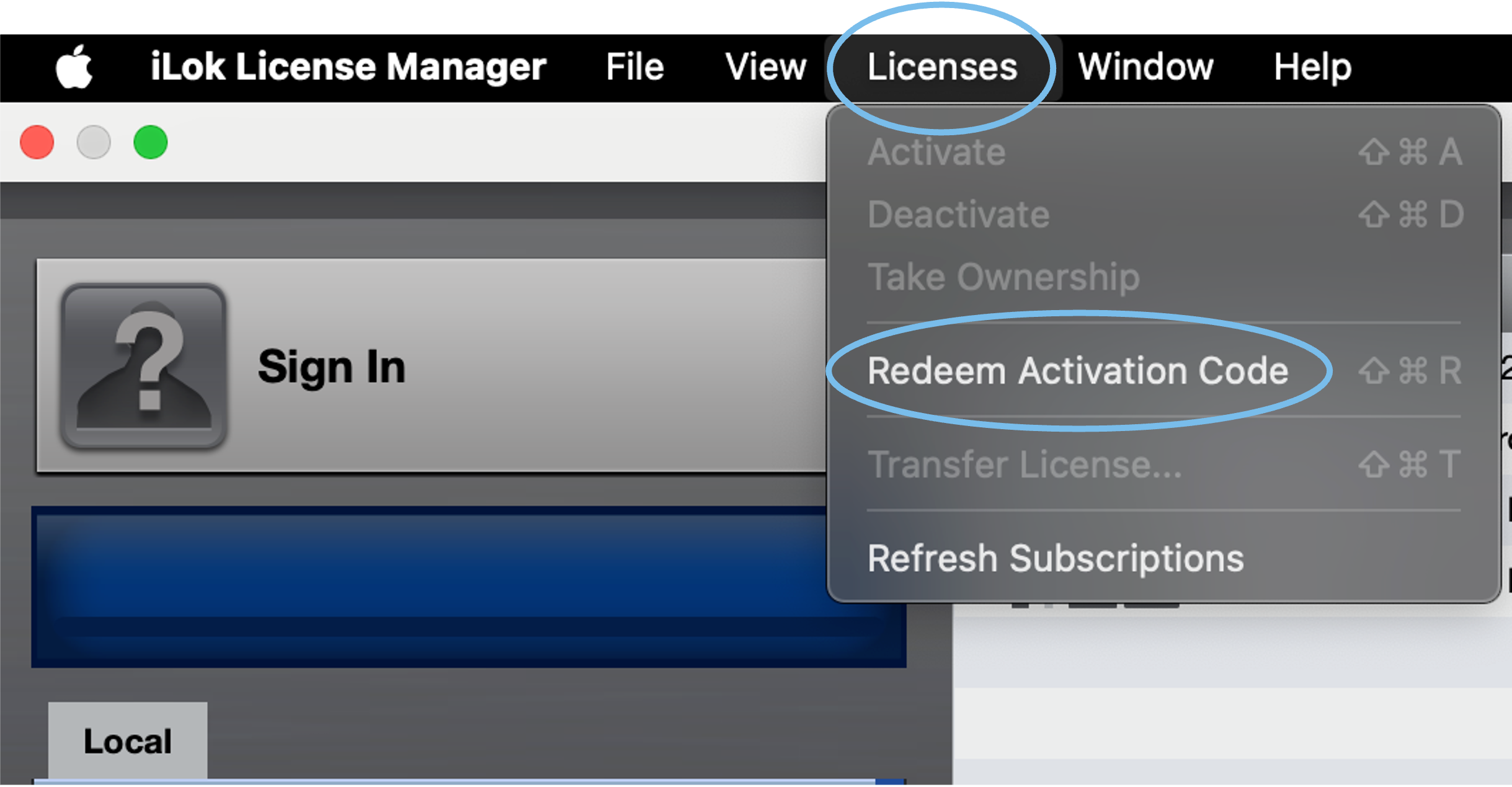
Click here to download the iLok License Manager.
Downloads for each Rupert Neve Designs Plug-in Installer can be found on our Downloads page.
See below for additional information, including Plug-in User Guides, FAQs, System Requirements, or to contact our support team.
-
Contact Support
Please fill out our Plug-In Contact Form and we will be in touch as soon as we are able.
- Plug-In Manuals
-
System Requirements
DAW SUPPORT
Our plug-ins are compatible with Pro Tools, Logic Pro, Cubase, Nuendo, FL Studio, Ableton Live, LUNA, Reaper, Sonar, Studio One, and other DAWs that support AAX Native, AU, and/or VST3 plug-in formats, and run natively on Intel and Apple silicon processors.
AUTHORIZATIONS
They require an iLok2 or iLok3 USB Smart Key, machine based, or an iLok License Manager account and an iLok Cloud session for authorization. Each plug-in contains two activations per authorization.
SUPPORTED OPERATING SYSTEMS
Mac OS 10.13.x (High Sierra), 10.14.x (Mojave), 10.15.x (Catalina), 11.x (Big Sur), 12.x (Monterey), 13.x (Ventura), 14.x (Sonoma), 15.x (Sequoia), 26.x (Tahoe), and Windows 10 and 11.
** Mac OS version 10.12.x (Sierra) may work, but is not officially supported. Earlier Mac OS versions are not officially supported. **
-
FAQ
-
How do I redeem and activate my RND iLok authorization?
Once you complete an online order you will see an activation code (or codes) for the plug-in(s) you've purchased listed in your email receipt. Highlight and copy the code, then log in to your iLok account via the iLok License Manager application. Go to the Licenses menu and select "Redeem Activation Code", and paste the license code. You will be prompted to select an iLok dongle to activate the authorization to, then click "Activate". A confirmation window will appear where you can verify the iLok selected and click "OK".
-
I am not sure what Rupert Neve Designs plug-ins I own. Where can I see my purchases?
RND does not maintain user accounts at this time. Instead we rely on your iLok account information for ownership issues. Please log into your iLok account and sort by PRODUCT NAME to see what RND plug-ins you own. Our plug-ins are published by McDSP but every PRODUCT NAME should start with 'Rupert Neve Designs'
-
I lost my iLok/My iLok was stolen. What can be done to restore my plug-ins?
First, go to ilok.com and file a LOST or STOLEN iLok RMA. Send the RMA# provided to plugins@rupertneve.com and we do what we can to get you back up and running again.
-
I am trying to make a purchase with your online store and my credit cards keep getting declined at checkout but the provider says it's OK and it works for other sites. What can I do?
This can happen for a variety of reasons. It can be common for credit card companies to initiate fraud protection. If this is the case, contacting your credit card company may fix the problem and you can request us to try your card again: plugins@rupertneve.com.
Or you can place the order again using a different credit card.
Please let us know if you have attempted multiple orders so that we can delete your extraneous, duplicate order(s.)
If you continue to have problems, please contact us at plugins@rupertneve.com and we will respond as quickly as possible. In the meantime, all of our plugins have a 14 day trial period.
-
I purchased some plug-ins. Why can't I see any authorizations in my iLok account?
You should have an activation code listed for each product in your electronic receipt. Log into your iLok account via the iLok License Manager application. Go to the LICENSE menu at the very top and select REDEEM ACTIVATION CODE. Then the authorization will be in the AVAILABLE section of your account. Right click and select ACTIVATE and assign it to an iLok2/3, Local Machine, or iLok Cloud Session. You can also drag it from the list to any of these devices to activate.
-
I just purchased a plug-in but I work on two different systems. May I have another authorization for my second system?
Our licensing policy is two iLok authorizations per product purchased. This lets you use a single RND plug-in license to authorize each of your two systems!
Please note, utilizing both activations on two systems at the same time requires using either an iLok2/3 dongle or local machine, as iLok accounts can only have one iLok Cloud Session open at a time.
-
How do I get demo authorizations to check out RND plug-ins?
The easiest way to get a demo authorization is to install whatever plug-in[s] you wish to try, launch your DAW, and when the authorization window comes up, click the TRY button and enter in your iLok information. Be sure you have an iLok2 or iLok 3 connected for the demo auth to be assigned. You can access each plug-in installer directly from our Downloads page. Thank you for trying our plug-ins!
-
Where do various VST plug-ins get installed on Windows systems?
VST install locations:
x64 VST3 = C:/Program Files/Common Files/VST3
Win32 VST3 = C:/Program Files (x86)/Common Files/VST3
-
I don’t see any presets when I open the plug-ins. What’s wrong?
A lot depends on your machine and your operating system, but chances are your DAW isn’t pulling the presets from their correct location on your drive.
Here’s where the presets should be located:
macOS:
Mac HD/Applications/Rupert_Neve_Designs/RND_542/551/P2MB/Presets_AU/PT/VSTWindows:
C:/Users//Documents/VST3 Presets/Rupert_Neve_Designs/If you don’t see the presets in those folders at all, you can get them from our Downloads page and try manually copying them to those folders, then restarting your DAW. If you still need help, please get in touch and we’ll do our best to assist you: plugins@rupertneve.com
-
Where are your manuals located?
Windows – C:/Program Files (x86)/Rupert_Neve_Designs/
Mac – System HD/Applications/Rupert_Neve_Designs/
-
I just installed a new version of RND plug-ins but they are not recognized by my DAW.
It may be an issue with the copy protection being used. Please go to www.ilok.com and download and install the latest version of the iLok License Manager application and log into your iLok account. Then right click your iLok with your RND auths and select SYNCHRONIZE. Once the spinning blue wheel completes, log out and try your DAW again.
-
How do I know what version my RND plug-ins are?
Log into your iLok account and sort by PRODUCT NAME to see what plug-ins you own. The version number will be appended to the product name. You can also click on each RND 'R' logo in the plug-in UI to access the version number.
-
I am having trouble with a plug-in demo.
First, please make sure you have an iLok account set up and the iLok License Manager installed. If you are still having trouble, please contact plugins@rupertneve.com and we will do our best to assist you.
-
How do I redeem and activate my RND iLok authorization?
- Youtube
